myResearchQuill

Features

Everything myResearchQuill does

A full tour, section by section. The app is the same on iPhone, iPad and Mac unless a note says otherwise.

Projects

A project is one piece of work: an essay, a lab report, a dissertation chapter. It holds that work's sources, notes and references, and has its own citation style.
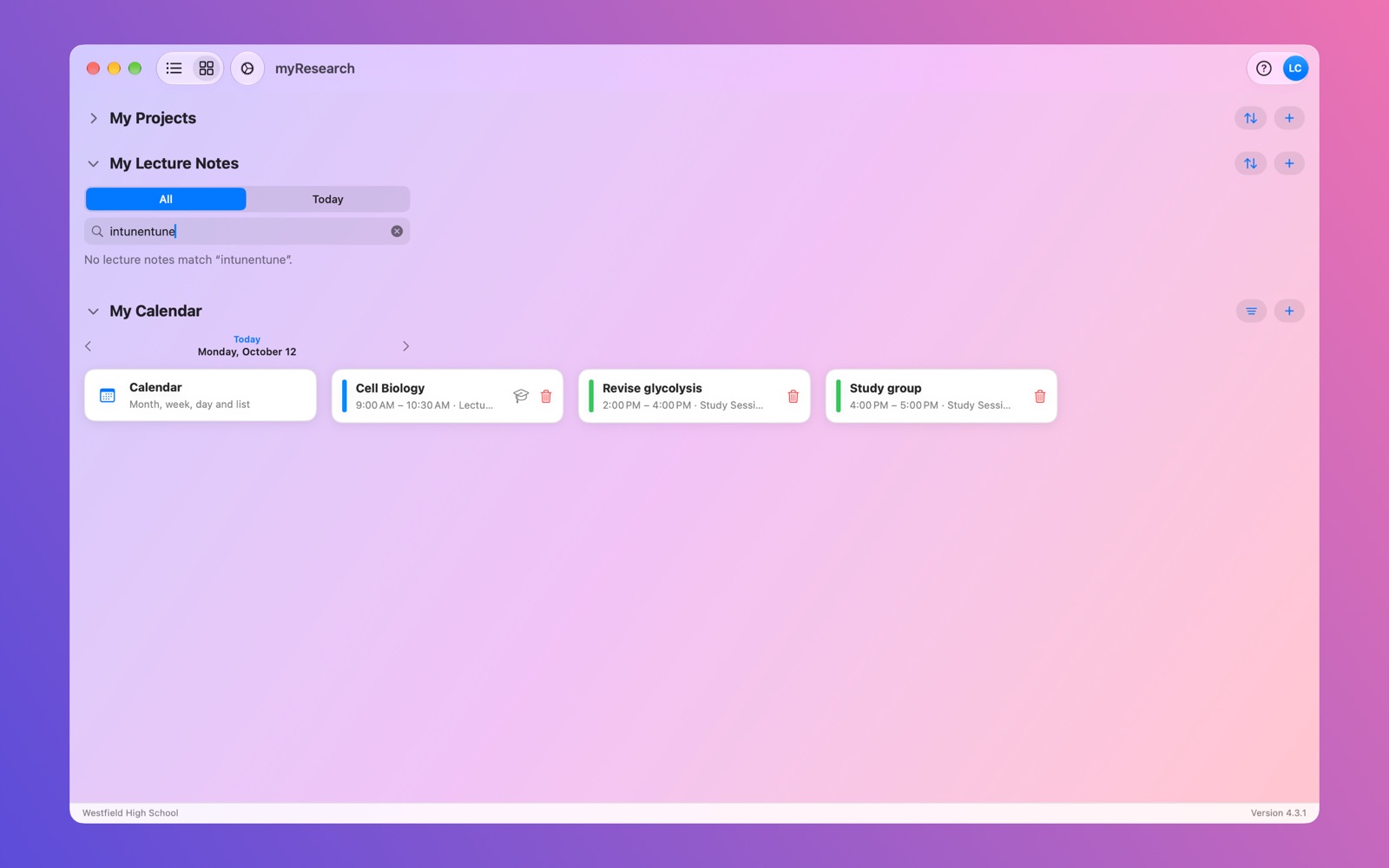
  • Home as a list or as cards. Cards show each project's picture, name and summary. Switch between them from the toolbar, and choose which one the app opens with.
  • Your order. Projects are A–Z until you drag them into an order of your own. Sort A–Z puts them back.
  • A picture with a focal point. Choose the part of the picture that matters and it stays in view on the card and behind the project's page.
  • Read-only until you edit. A project opens for reading. Tap Edit to change it, then Save, or Cancel to leave it as it was.
  • Nothing deleted by accident. Deleting a project always asks first.
The home screen on the Mac: project cards, lecture note cards and today's events

Sources

Add the books, journal articles, websites and videos you use. The form shows the fields that kind of source needs and leaves out the ones it doesn't.
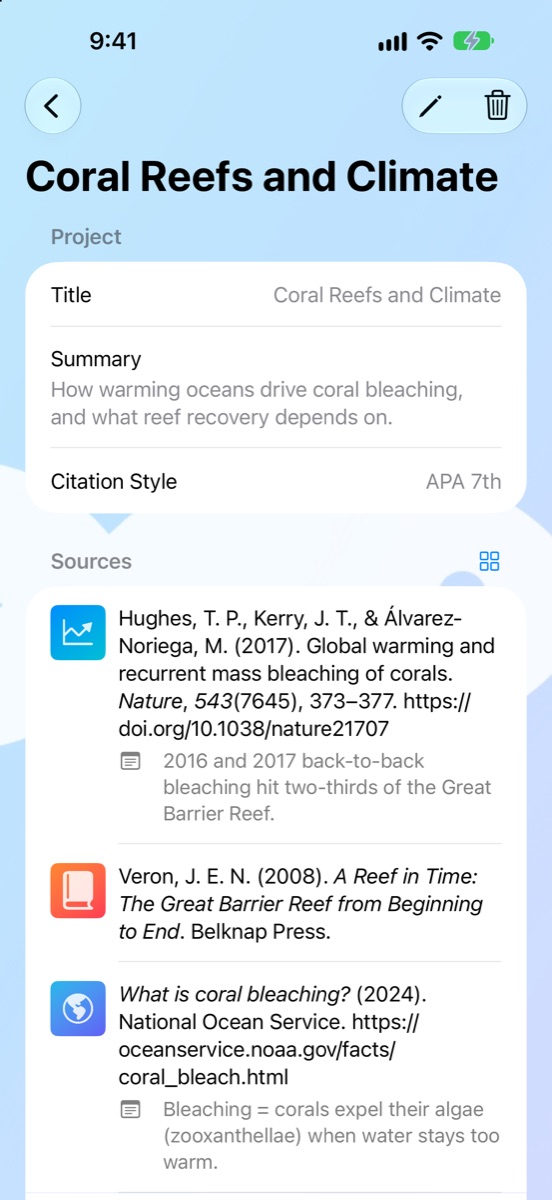
  • Every detail a reference needs: authors, year, title, journal, website or platform, publisher, edition, volume, issue, pages, ISBN, DOI, web address and date accessed.
  • Organisations as authors. Mark an author such as a government department as an organisation and it is cited as written, not turned into initials.
  • A live preview of the reference as you fill the form in.
  • List or cards. See sources as a list with their references and notes, or as picture cards.
  • Pictures found for you: a book's cover from Open Library, a web page's own picture, a YouTube or Vimeo thumbnail, or the first page of a PDF. Or use a photo, a file, your camera or the Image Gallery.
  • Added or Needs Review. Mark a source you haven't read yet, filter the list by status, and sort by order added, date found or title.
A project on iPhone with three sources and their references

Citations

Each project has a citation style, and its sources are shown as a finished reference list in that style.

Always available

  • APA 7th
  • MLA 9th
  • Chicago 17th, notes and bibliography
  • Chicago 17th, author-date
  • Harvard

Switch on in Settings

  • IEEE
  • Vancouver
  • AMA 11th
  • Turabian 9th
  • OSCOLA 4th

What the app handles

  • Author order, initials and "et al."
  • Italics and quotation marks
  • Volume, issue and page formats
  • Numbered lists for IEEE, Vancouver and AMA
  • DOIs and web addresses

See two sources formatted in all ten styles →

Your institution's guide has the last word. Check a reference list against it before you hand work in, as you would with any tool.

Find Sources

Open Find Sources from a project you're editing and search without leaving the app.

Five free indexes, searched in the app

  • OpenAlex: scholarly work in every subject.
  • Crossref: the registry of almost every publisher's articles.
  • Europe PMC: life sciences and medicine.
  • Open Library: books.
  • arXiv: preprints, clearly marked "Not peer reviewed".

All Free Indexes asks them together and merges the results, showing a work found in two places once.
Narrow it down

  • Free to Read Only, where the index can tell.
  • Published work only, or preprints, theses and reports as well.
  • Any year, or the last 5, 10 or 20 years.
  • Best match, most cited or newest.
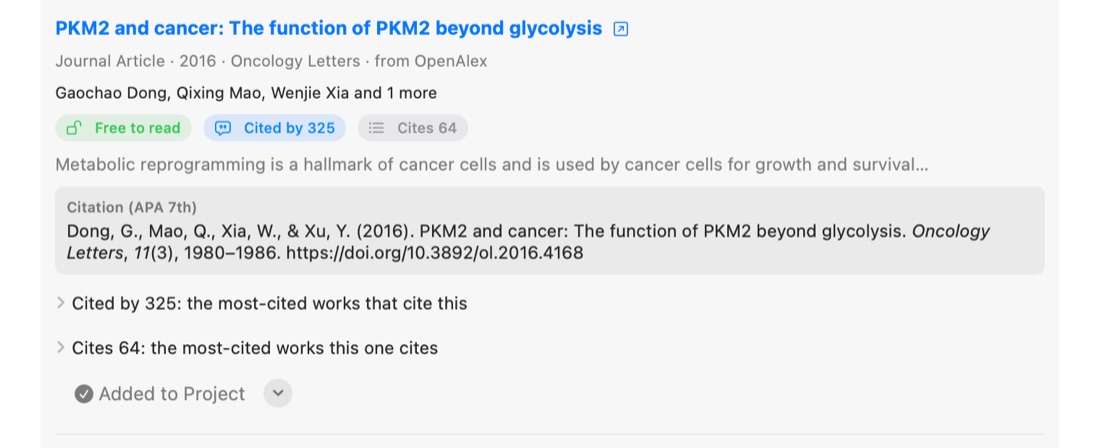
A search result with badges for Free to read, Cited by 325 and Cites 64, and its citation in APA style

Decide on each result

Every result shows its type, year, journal, authors, whether it's free to read, how often it's cited and the start of its abstract, with its reference in your project's style. For OpenAlex results you can also open the most-cited works that cite it, and that it cites.

  • Add to Project, or Add, Needs Review to read later.
  • Reject and it won't be offered again (you can undo it).
  • Save Search to run the same search another day.

Your library and the wider web

List your institution's databases and library search once, in Settings › Library, and Find Sources offers a one-tap search of each. They open in your browser, where you sign in as you usually do. The app never asks for or stores your password. The same goes for general search engines.

Add something you found yourself

Paste a DOI or a web address and the app looks up the details and shows the result ready to add.

Notes, references and dictation

Notes

Keep notes on the project as a whole and on each source. Add, edit and delete them freely.

Dictation

Tap the microphone beside a note and speak. Your words are typed for you, on your device where your language supports it.

References

Quick links and titles to remember: a website, book, article or magazine you haven't decided to cite yet. A web address opens in your browser.

Lecture notes

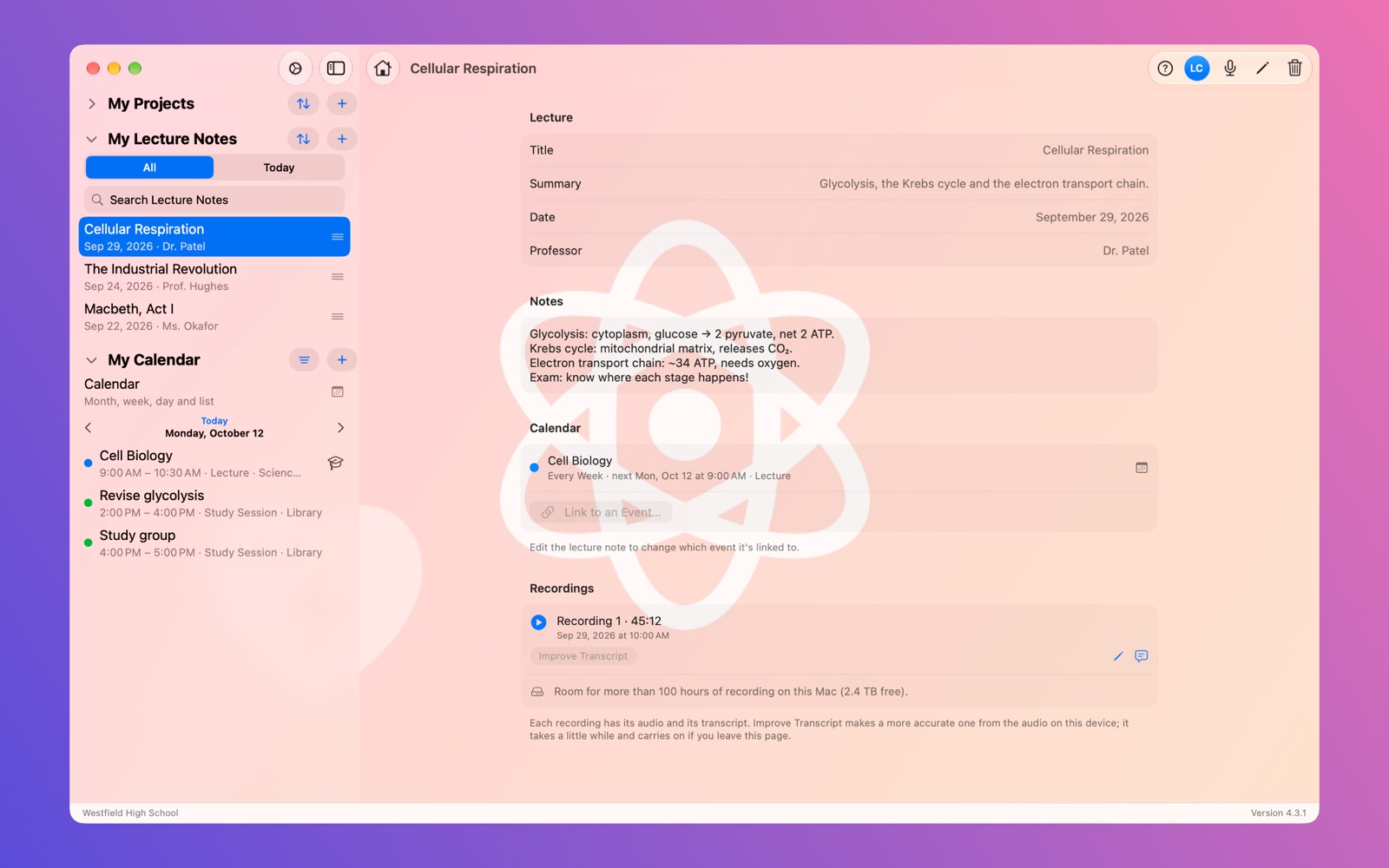
Beside your projects, the home screen has My Lecture Notes: one note per lecture, with its title, date, professor, summary and your notes.
  • All or Today. Show every lecture note, or just today's.
  • Search everything: titles, notes, professors, dates, recording names and the words in every transcript.
  • Sort by latest or earliest date, A–Z, or your own order.
  • A picture for each lecture, such as a photo of the board or the first slide.
  • Linked to your calendar. A lecture note shows the event it belongs to, and the event opens the note.
A lecture note on the Mac with its details, notes, linked calendar event and a recording

Recording and transcripts

Tap the microphone on a lecture note to record. The recording screen is unmistakable: a red banner, a large timer, and Pause, Resume and Stop.

  • Keeps going on iPhone with the screen locked or another app in front. A phone call stops the recording and saves what you have.
  • Several recordings per lecture, each with a name of your choice, a play button and its transcript.
  • Room to record. The app tells you how many hours of recording will fit on your device, and warns you when it's under two.
  • Small files: about 30 MB an hour.

Transcripts

  • Live shows the words as they're spoken.
  • After the Lecture records sound only and writes the transcript when you stop, which saves battery. It's the starting choice on iPhone and iPad.
  • Improve Transcript listens to the whole recording again and writes a more accurate transcript. It carries on while you do something else.

Making a transcript from a whole recording needs iOS 26, iPadOS 26 or macOS 26 or later. On older systems you get the live transcript, which only hears while the app is on screen; the sound is always recorded in full.
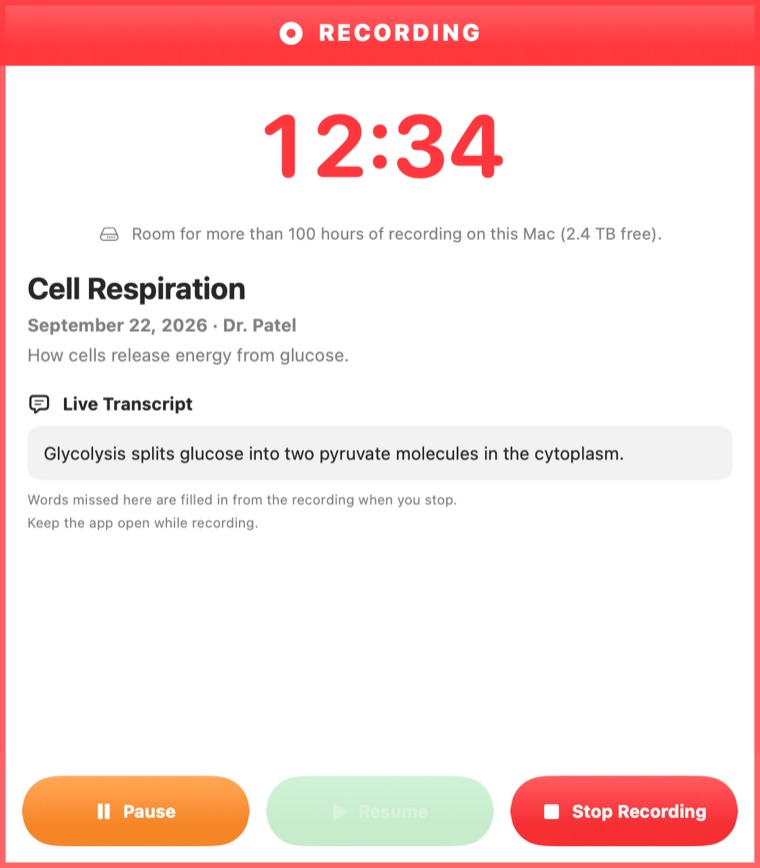
The recording screen with its red RECORDING banner, timer, lecture details, live transcript and Pause, Resume and Stop buttons

Calendar and timetable

The third section of the home screen is My Calendar: the day's events, with a calendar page behind it.

  • Five views: month, week, three days, day and a list of what's coming up.
  • Events with everything they need: a category, all-day or timed, a place, notes, a repeat (daily, weekly, fortnightly, monthly or yearly) and a reminder.
  • Your own categories and colours. Start with Lecture, Study Session and Meet with Professor, and add your own.
  • Your day's hours. Choose when the timetable views start and end; they stretch for an early or late event.

With Apple Calendar

  • Show the calendars you choose beside your own events. The app reads them live and keeps no copy.
  • Copy the events you make in the app into an Apple calendar, if you want them there too.
  • Choose which calendars each view shows, and which it opens with.

Your academic timetable

Pick the calendar your course timetable is in. Create Lecture Notes then makes a note for every lecture in the dates you choose, filled in with its title, time and place. Run it again later and it only adds what's missing.
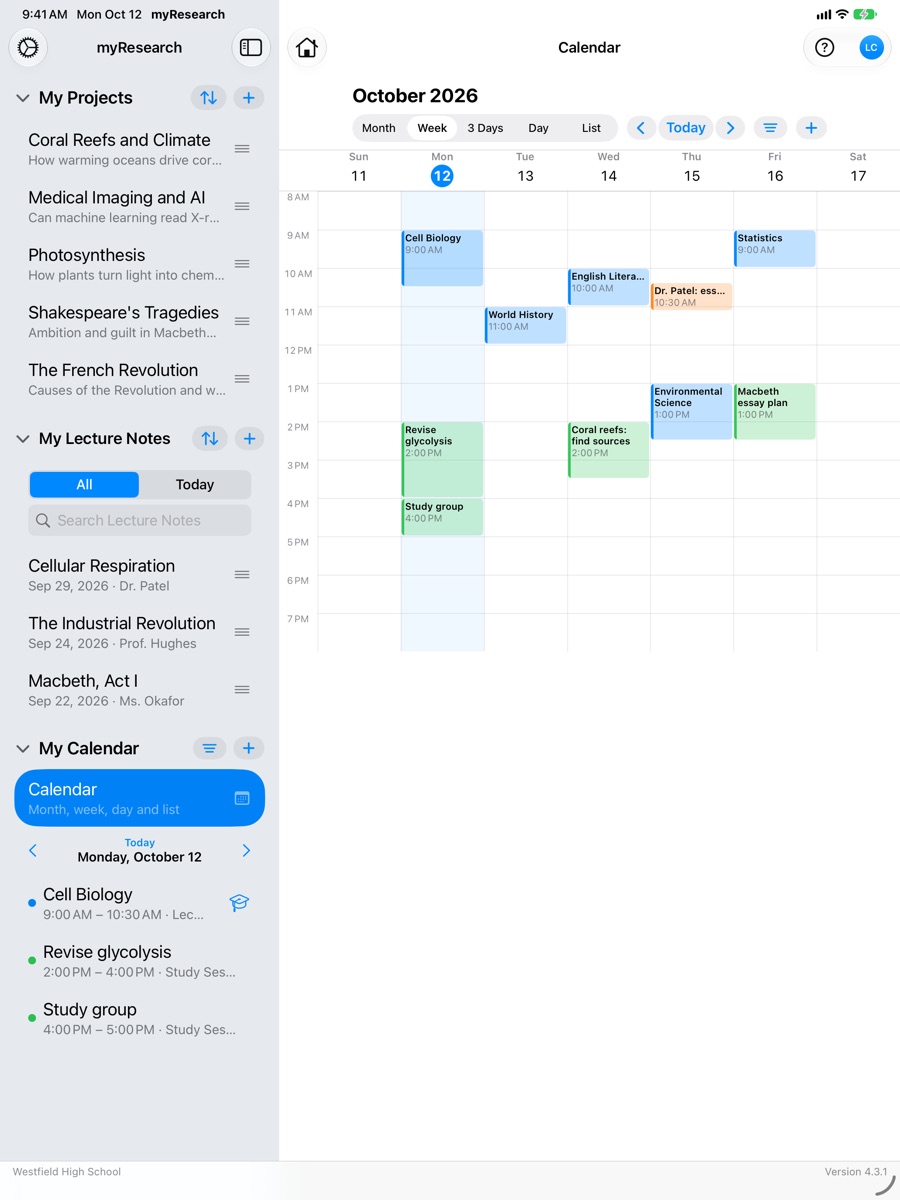
The calendar's week view on iPad

Look and feel

Set the app up the way you like it. Appearance is chosen on each device separately.

Light or dark

Follow your device, or keep the app light or dark whatever the device is doing.

Accent colour

Nine colours, or your device's own, for buttons, links, selections and today on the calendar.

App icon

Eight icons to choose from for your Home Screen, or the Dock on a Mac.

Home image and title

Your own picture behind the home screen and your own name at the top of it.

Default images

A picture for any project, source or lecture note that hasn't one of its own.

Your region

Dates written the way your country writes them. References keep the format their style requires.

The Image Gallery

194 ready-made pictures in ten groups: Study, Science and Maths, Nature and the Earth, Technology and Engineering, Health and Medicine, History and Literature, Arts and Media, Society and Business, Sport, and Sources. Search by subject and use one wherever a picture can go.
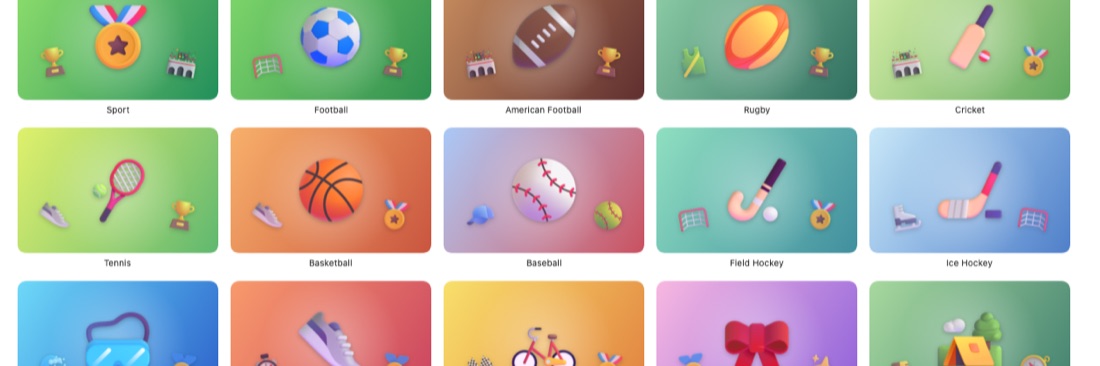
Image Gallery pictures for sports including football, American football, rugby, cricket and tennis

My Profile

Your name, school, course and a picture for your avatar, or your initials if you'd rather. It stays on your devices and in your iCloud.

Sync between your devices

Sign in to the same Apple Account on your iPhone, iPad and Mac, and your projects, sources, notes, lecture notes, recordings, events and most settings appear on all of them. It uses your own private iCloud storage.

Archive, restore and reset

Your work isn't locked in. In Settings › About:
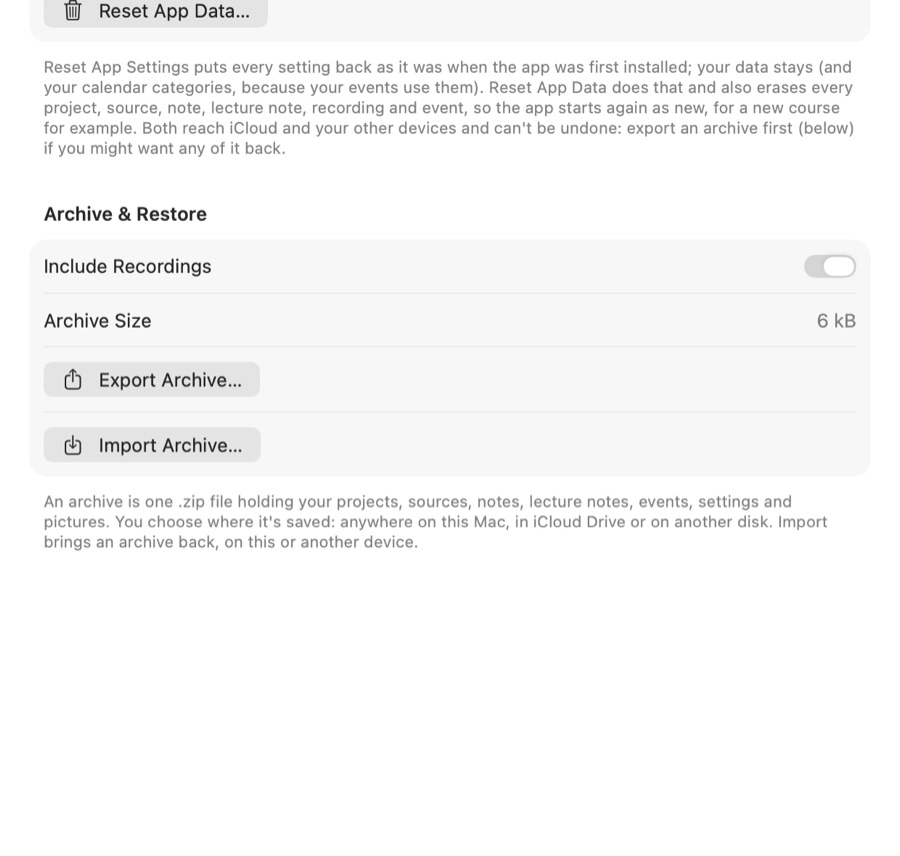
Archive & Restore

  • Export Archive saves everything to one .zip file: projects, sources, notes, lecture notes, events, settings and pictures. Any computer can open it.
  • Include Recordings adds the audio. Leave it off for a small file that still has every transcript.
  • Archive Size is shown before you export, and you choose where the file goes.
  • Import Archive brings one back, on this or another device. Add to what's there, or replace everything so the app is exactly as the archive was.

Reset

  • Reset App Settings puts every setting back to how a new install starts. Your work stays.
  • Reset App Data also erases your work, on every device, for a clean start on a new course. You type RESET to confirm.
Settings, About: the Reset buttons, and Archive and Restore with Include Recordings, Archive Size, Export Archive and Import Archive

Help, built in

The ? button opens the app's own help: thirteen topics, from Getting Started to If Something Isn't Working, with a search box. It's written for the device you're holding, so it says "tap" on a phone and "click" on a Mac.

What you need

iPhoneiOS 17 or later
iPadiPadOS 17 or later
MacmacOS 14 or later
Transcripts from a whole recordingiOS 26, iPadOS 26 or macOS 26 or later
SyncAn Apple Account with iCloud turned on (optional)
Find SourcesAn internet connection
PriceFree

Getting started →